
Install app
Add Leasential to your phone or computer
No app store and nothing to download. Leasential installs from the browser in a few taps, for property owners and tenants alike.
Adding Leasential to your home screen
Video coming soon
Android
In Chrome
- 1
Open app.leasential.cloud in Chrome
Sign in, or register if you are new.
- 2
Tap Install app
It is in Settings and in the More menu, and opens Chrome's install dialog in one tap. Chrome's own ⋮ menu has Install app too.
- 3
Tap Install
Some phones say Add to Home screen; either works the same way.
- 4
Open it from your home screen
Leasential gets its own icon and opens without the browser bar.
iPhone and iPad
In Safari
- 1
Open app.leasential.cloud in Safari
Apple lets only Safari's Share menu add a web app to the Home Screen.
- 2
Tap the Share icon
The square with an arrow pointing up. On iPad it is at the top right.
- 3
Tap Add to Home Screen
Scroll the list down a little if you don't see it right away.
- 4
Tap Add
Leasential appears on your Home Screen and opens like any other app.
Computer
In Chrome or Edge
- 1
Open app.leasential.cloud in Chrome or Edge
Sign in, or register if you are new.
- 2
Click Install app
It is the last item in Leasential's side menu. The install icon at the right of the address bar does the same.
- 3
Click Install
The browser asks once to confirm.
- 4
Open it like any program
Leasential opens in its own window. Pin it to the taskbar or the Dock to keep it handy.
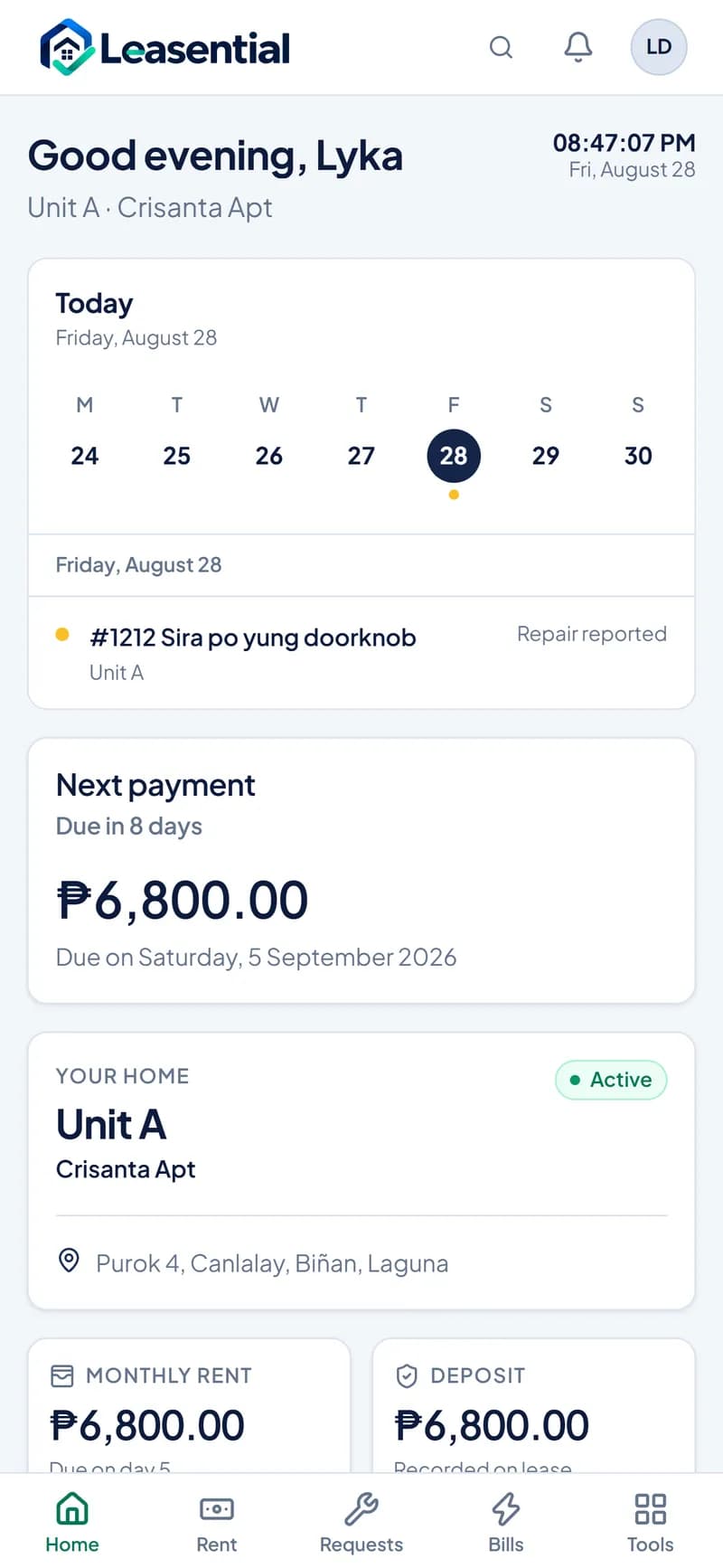
Built for the phone in hand
Forms reflow into one column, reports become stacked summaries, and inputs stay large enough that an iPhone never zooms in on them.
- Launches from the home screen in its own window.
- Tenant receipts and repair reports wait safely when the connection drops, and send when it returns.
- Photos come straight from the camera and are stored privately.

No account yet?
Register first, then install from the app. Your tenants install the same way once they accept their invitation.